
How to Reduce 3D Model File Size for Mobile Games
by Animatics Asset Store in Blog on January 15, 2026You finally finished your masterpiece. The character looks incredible. The textures glow with detail. Then, you hit “Export.” Your heart sinks. That single 3d model file is massive. If you drop that into a mobile game engine, the frame rate will tank. Your players will face long loading screens. Worse, their phones might overheat within minutes.
Mobile hardware has limits. You cannot treat a smartphone like a high-end gaming PC. You must balance visual fidelity with raw performance. We need to trim the fat without losing the soul of your art.
Let’s dive into how you can shrink your assets and keep your game running smooth.
Art of Polygon Reduction
High poly counts kill mobile performance. Every triangle adds a calculation for the GPU. If your 3d model file contains millions of faces, your game will lag.
Decimation and Retopology
You don’t need every tiny detail modeled in 3D. Most small bumps and grooves should live in your textures, not your geometry.
- Use Decimation Tools: Software like ZBrush or Blender offers “Decimate” modifiers. These reduce triangle counts while maintaining the overall shape.
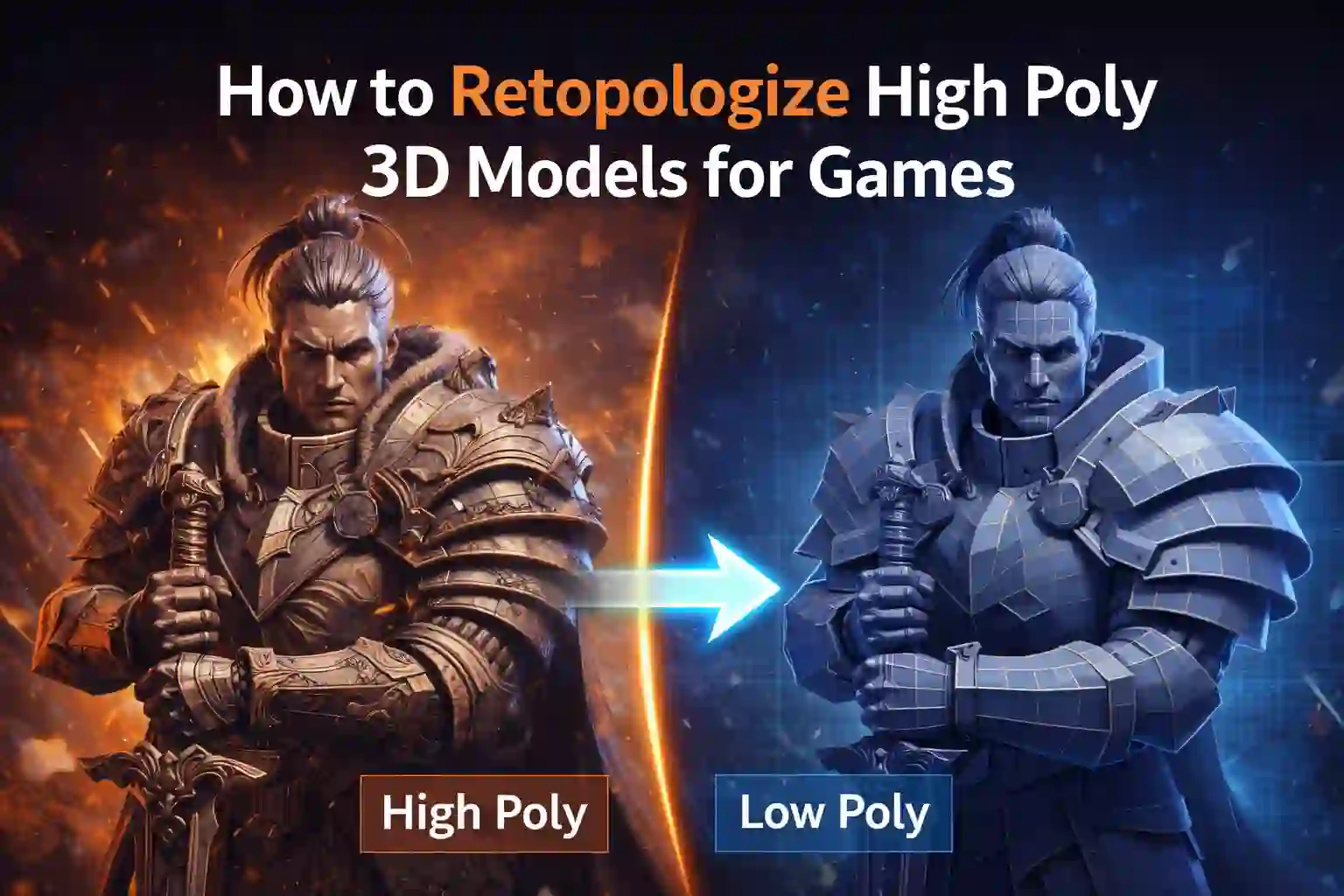
- Manual Retopology: For characters, manual work wins every time. Draw a new, simpler mesh over your high-poly sculpt.
- Target Counts: Aim for 3,000 to 10,000 triangles for main characters. Background props should stay under 500.
Clean Your Geometry
Hidden faces steal memory. If a player never sees the bottom of a crate, delete those faces.
- Remove Double Vertices: Merge overlapping points to clean up the mesh.
- Delete N-Gons: Stick to quads or triangles. Most game engines convert everything to triangles anyway.
Texture Maps
Textures often take up more space than the geometry itself. A 4K texture pack will bloat your 3d model file size instantly.
Downsizing Resolution
Mobile screens are small. You rarely need a 2048×2048 texture.
- The Power of Two: Always use dimensions like 512×512 or 1024×1024.
- Prioritize Detail: Give your main character a 1024 map. Give a distant tree a 128 map. Players won’t notice the difference in the heat of gameplay.
Texture Atlasing
Every texture requires a “draw call.” Too many draw calls slow down the CPU.
- Combine Textures: Put multiple small objects on one large texture sheet.
- Shared Materials: Use the same material for similar props. This trick saves massive amounts of processing power.
Simplify Rigs and Animations
Animation data adds weight to your export. A complex skeleton makes a 3d model file bulky and hard to process.
Bone Limits
Mobile engines usually have a limit on how many bones can influence a single vertex.
- Reduce Bone Count: Do you really need individual bones for every finger on a background NPC? Probably not.
- Limit Influences: Set your vertex weights to a maximum of two bones. This speeds up skinning calculations significantly.
Animation Compression
Don’t bake every single frame.
- Keyframe Reduction: Delete unnecessary keyframes that don’t change the motion.
- Constant Interpolation: Use linear curves where possible to keep the data light.
Choose the Right Export Format
Your choice of format changes how the engine reads your data.
- FBX: The industry standard. It handles animation and rigs well but can be heavy.
- GLTF/GLB: The “JPEG of 3D.” These files are incredibly efficient for mobile and web. They offer great compression without losing quality.
Always check your export settings. Disable “Embed Media” if you plan to manage textures separately in Unity or Unreal. This keeps the base 3d model file lean.
Leverage Professional Assets
Sometimes, you don’t have time to retopologize every single rock and chair. Starting from scratch every time is exhausting. This is where smart sourcing comes into play.
I often browse the Animatics Asset Store when I need optimized foundations. They offer a variety of assets that creators already built with performance in mind. Instead of struggling with a messy, high-poly download from a random site, you can find models that fit mobile constraints immediately. It saves hours of manual cleanup. Using pre-optimized assets from a reliable source like the Animatics Asset Store lets you focus on the creative side of level design rather than the technical headache of vertex hunting.
Bake Your Lighting and Details
Real-time shadows are expensive. Mobile devices struggle with complex lighting calculations.
Normal Mapping
Instead of modeling every bolt on a robot, bake them into a Normal Map.
- Create a high-poly version with all the details.
- Create a low-poly version with the basic shape.
- Project the details onto the low-poly texture. This makes your simple 3d model file look like a high-end cinematic asset.
Light Baking
Bake your shadows directly into the textures (Lightmaps).
- Static Objects: If a building doesn’t move, it doesn’t need real-time shadows.
- Performance Gain: This reduces the load on the mobile GPU significantly. It also ensures your game looks consistent across different devices.
Test on Real Hardware
Software previews are lying to you. Your powerful workstation makes everything look smooth.
- Side-load Frequently: Put your 3d model file on a mid-range phone.
- Check Thermal Throttling: See if the phone gets hot after ten minutes.
- Profile the GPU: Use engine profiling tools to see exactly which model is hogging the memory.
Optimization is a recursive process. You might need to go back and delete more edges or shrink another texture.
Final Thoughts on Optimization
Creating for mobile requires a different mindset. You are a digital minimalist. Every vertex must earn its place. Every pixel must serve a purpose. By focusing on smart retopology, texture atlasing, and efficient baking, you ensure your game reaches the widest possible audience.
Don’t let a bloated 3d model file stand between your players and your vision. Start small, bake your details, and always keep an eye on your performance metrics. Your players will thank you with longer play sessions and better reviews.
Latest Blog